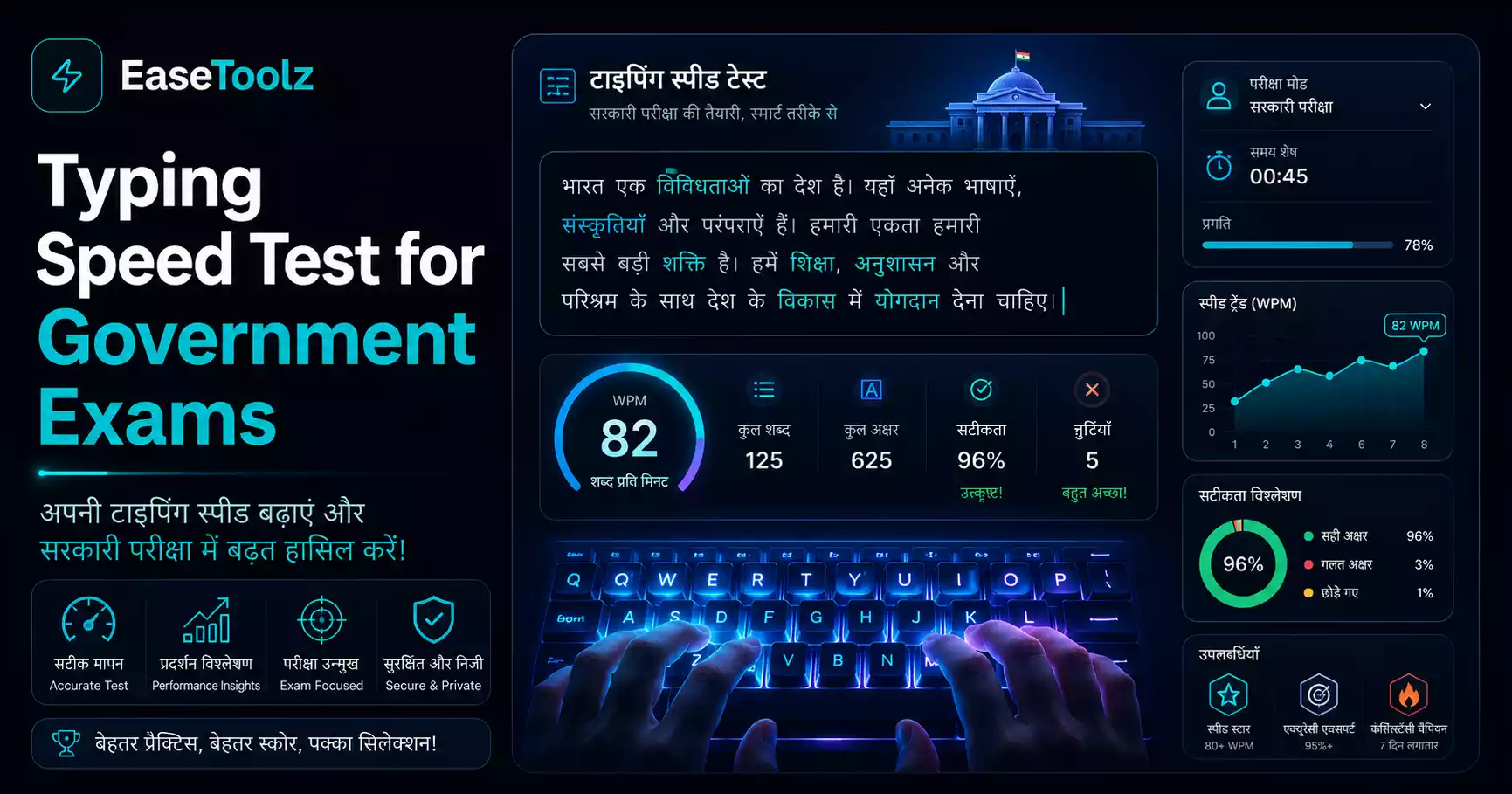
Hindi typing on a computer uses a phonetic or layout-based keyboard — not the standard QWERTY you use for English. Most government exams use Mangal font with either the Remington Gail or Inscript layout. Pick the right layout for your exam, install it once, and then practice consistently — most people reach 25–30 WPM in Hindi within 6–8 weeks. A browser-based typing speed test lets you track your progress as you improve.
Quick answer: For most SSC and central government exams, you need Mangal font on Remington Gail layout. Install the layout from Windows Language settings, download Mangal font if needed, and practice daily for 20–30 minutes. Target 25–30 WPM for standard government requirements.
Hindi typing: what you actually need to know first
Before starting to practice Hindi typing, you need to answer one question: which keyboard layout does your exam require?
The two most common:
Mangal (Unicode) font — most government exams:
- Used for SSC, Railway, UPSC, most central government exams
- Works on Windows with built-in Unicode support
- Comes in two key layout options: Remington Gail, Remington CBI, or Inscript
- Your exam notification will specify which layout
Krutidev / DevLys (ISCII encoding) — some state exams:
- Used by some state government exams, older systems
- Different keyboard layout than Mangal
- Completely incompatible with Unicode-based exams
Inscript — standard government layout:
- Supported on all operating systems natively
- Used for central government and some competitive exams
- Different from the Remington layout popular in private typing institutes
Practicing on the wrong layout wastes your time. Check your exam notification first.
How to set up Hindi typing on Windows
For Mangal font with Inscript layout:
- Settings → Time & Language → Language → Add a language → Hindi
- Once added, click on Hindi → Options
- Add the keyboard: Hindi Inscript (or Remington Gail if your exam specifies it)
- Mangal font comes installed with Windows. No download needed.
Switching between English and Hindi: Press Win + Space bar (or Left Alt + Shift) to toggle between keyboard layouts.
For Krutidev:
- Download Krutidev or DevLys font and install it
- The layout maps QWERTY keys to Hindi characters differently
Typing test: After setting up, open Notepad, switch to Hindi input, and try typing. If Hindi characters appear, the setup is working.
The Hindi keyboard layout: what to learn first
The Remington Gail layout places Hindi characters on the keys roughly where they phonetically correspond to English letters. Example: the 'k' key = क (ka), 'd' key = द (da).
The full layout has about 36 base characters, plus matras (vowel marks) added using specific keys. Learning to type matras fluently is often the hardest part.
Start with these 8 most-frequent Hindi characters:
- क (ka) — very common
- म (ma) — common
- र (ra) — common
- न (na) — common
- ह (ha) — common
- ा (aa matra) — used after almost every vowel
- ि (i matra) — very common
- ी (ee matra) — very common
Practice these first until they're automatic. Don't try to learn the full layout at once.
Daily practice schedule for beginners
Week 1: Learn the layout
- 15–20 minutes per day
- Type individual characters, then 2–3 letter words
- Use a layout reference card (print one or keep it on screen)
- Don't time yourself yet — focus on getting characters right
Week 2–3: Common words
- Practice the 200 most common Hindi words repeatedly
- Start reducing how often you look at the reference card
- Begin 1-minute timed tests — even if slow, check your accuracy
Week 4–5: Sentences and passages
- Type short paragraphs
- Aim for 98%+ accuracy
- Gradually let speed increase naturally
- Target: 15–18 WPM with high accuracy
Week 6–8: Exam preparation
- Full-length practice passages (5–10 minutes)
- Simulate exam conditions — no stopping, timed
- Target: 28–32 WPM (above the typical 25–30 WPM requirement)
- Check: are your errors within the 5% allowance?
My roommate was preparing for an IBPS clerical exam and had never typed in Hindi before. She started from scratch. For the first two weeks she felt like she was going backwards — English typing felt natural and Hindi felt completely foreign. Around week 3 she started recognizing patterns. By week 6 she was at 22 WPM. She cleared the Hindi typing round, which many candidates fail because they underestimate how different the layout feels.
Matra (vowel marks) — the tricky part
Hindi vowel marks (matras) are placed before or after consonants using specific keys. Getting fast at matras is what separates average typists from fast ones.
Most important matras to master:
- ा (aa) — typed after the consonant
- ि (small i) — typed BEFORE the consonant on most layouts
- ी (long ee) — typed after
- ु (u) and ू (oo) — typed after
- े (e) and ै (ai) — typed after
The ि (small i) matra is the most confusing for beginners because you type it before the consonant even though it appears after in the displayed text. This is a quirk of how Hindi rendering works in Unicode. Just memorize it and practice.
Common mistakes in Hindi typing practice
Using the wrong layout — If you practice Krutidev but your exam uses Remington Gail, you'll have to relearn everything. Check first.
Typing in phonetic mode — Phonetic input (where you type "namaste" and it converts to नमस्ते) is fine for casual use but not for speed tests. Government exams use direct layout input.
Not learning conjunct consonants — Half-consonants (halant) create conjuncts like क्ष, त्र, ज्ञ. Practice these combinations — they appear in every passage.
Giving up too early — Hindi typing genuinely feels slow and strange for the first 2–3 weeks. Push through that period and it clicks.
Government exam Hindi typing requirements
| Exam | Speed Required | Layout |
|---|---|---|
| SSC CHSL | 30 WPM | Remington Gail / Remington CBI |
| RRB NTPC Clerk | 25 WPM | Inscript or as specified |
| UPSC Steno | 25–30 WPM | As specified |
| State PSC | Varies (check notification) | Often Inscript |
Always verify with the official exam notification — requirements are sometimes updated.
Frequently asked questions
Can I use phonetic Hindi input (InPage style) for government exams? No. Government typing tests use specific keyboard layouts (Remington, Inscript) with direct character input. Phonetic input software isn't used in exams. Practice the correct layout from the start.
Is this completely free? Yes — no account, no payment, no watermark needed. You can practice as many times as you want.
Do my files get uploaded to a server? Not applicable — the typing test runs entirely in your browser with no file uploads.