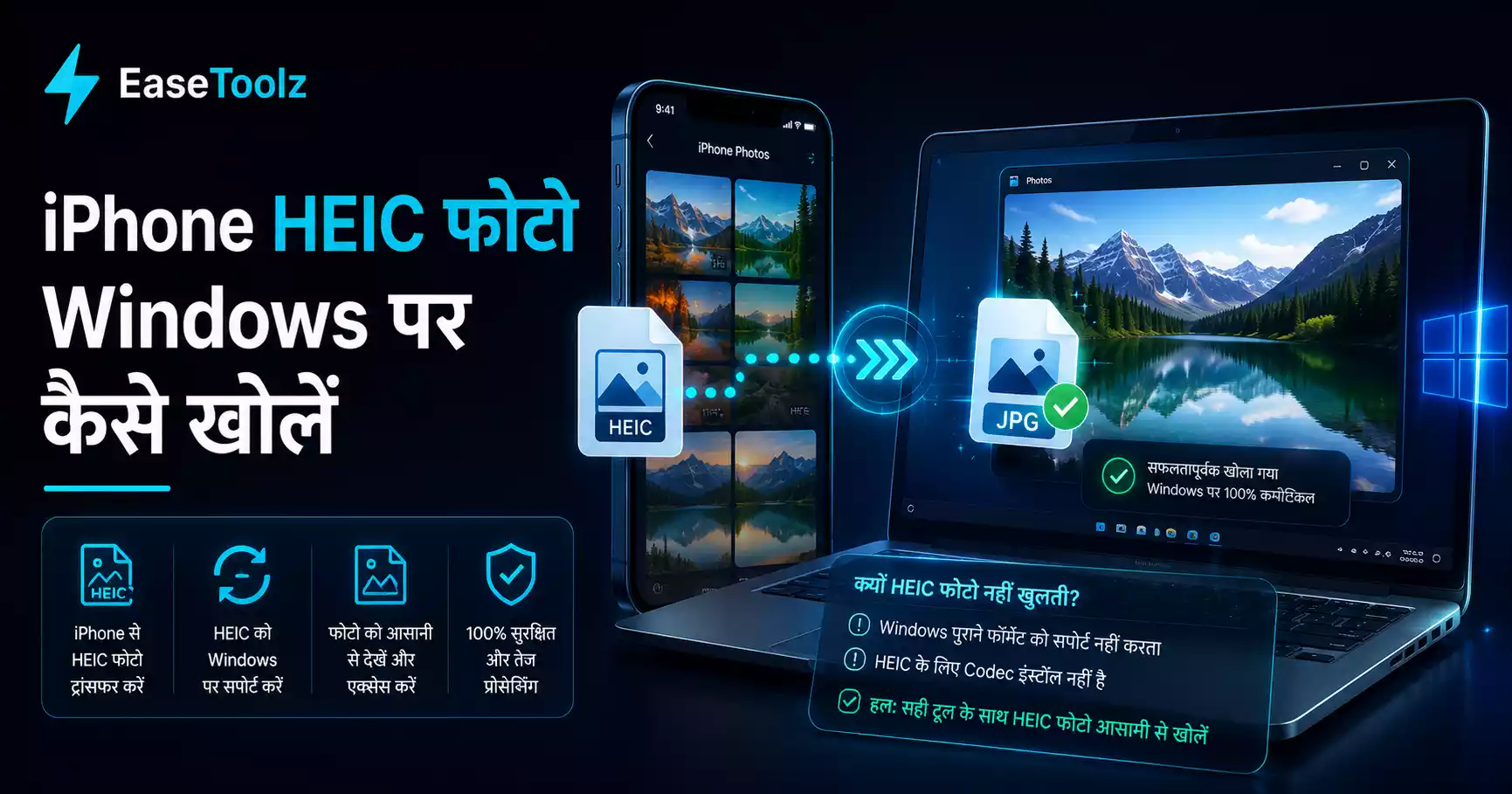
HEIC is Apple's photo format. Windows doesn't support it by default, which is why iPhone photos transferred to a PC either show as blank thumbnails or refuse to open. The fastest fix: convert the photos to JPG using a browser-based tool — drop the files in, download JPGs, done. No app installation, no purchase required.
Quick answer: Go to the HEIC to JPG converter in your browser, drop your HEIC files, and download the JPGs. Works instantly, nothing gets uploaded to any server. Or install the Microsoft HEIC extension from the Microsoft Store to make Windows open HEIC natively.
Why won't HEIC files open on Windows?
Apple introduced HEIC (High Efficiency Image Container) format with iOS 11 to save storage space. A HEIC photo is roughly half the file size of an equivalent JPEG at the same visual quality. Great for iPhone users — but the format isn't natively supported by Windows.
When you copy iPhone photos to a Windows PC, you'll see one of these:
- A blank gray square thumbnail in File Explorer
- "Windows can't open this file" error when you double-click
- File opens in a generic app that can't read the format
This isn't a broken file. It's just a format Windows doesn't understand yet.
Fix 1: Convert to JPG in your browser (fastest, always works)
No installation, no cost, no files uploaded anywhere:
- Open the HEIC to JPG converter in Chrome or Edge
- Drag and drop your HEIC photos
- Download the converted JPGs
The conversion runs entirely in your browser. You can drop multiple files at once for batch conversion. The quality is set to 92% by default — visually identical to the original for any normal use.
This is the right approach when you just need JPGs to use or share and don't need to solve the underlying Windows compatibility issue permanently.
Fix 2: Install the HEIC extension from Microsoft Store (permanent fix)
If you want Windows to open HEIC files natively (like it opens JPGs), you can install an extension:
- Open the Microsoft Store
- Search for "HEIF Image Extensions" (published by Microsoft Corporation)
- Install it — it's free
After installation, Windows Photos and File Explorer will display HEIC thumbnails and open HEIC files normally. You can also right-click → Open with → Windows Photos to view them.
Note: some people find they also need the "HEVC Video Extensions" for certain HEIC files with video thumbnails. If HEIC still doesn't work after installing HEIF extensions, try adding HEVC too.
Fix 3: Tell iPhone to shoot in JPG instead of HEIC
If you want to prevent the problem going forward:
- On your iPhone, open Settings
- Go to Camera → Formats
- Select Most Compatible instead of High Efficiency
Your iPhone will now shoot in JPG format. You lose a bit of storage efficiency, but photos transfer to Windows without conversion. Good choice if you regularly move photos between iPhone and Windows PC.
Fix 4: Configure AirDrop and cable transfer to auto-convert
If you keep HEIC on your iPhone but want automatic conversion when transferring:
For cable transfer (Finder/iTunes on Mac or Windows Explorer):
- Settings → Photos → scroll down to "Transfer to Mac or PC"
- Select Automatic — this converts to JPG when transferring to a non-Apple device
For AirDrop:
- AirDrop unfortunately sends HEIC to Mac and JPG to Windows automatically — if you're receiving on Windows and getting HEIC, the sending iPhone may have the setting wrong. Have the sender check their transfer settings.
I had a colleague who transferred 200 photos from her iPhone to her work laptop for a project, expecting to drop them into a PowerPoint presentation. Half the afternoon was gone before we figured out they were all HEIC and her laptop couldn't open them. We ran them through a browser converter in batches — about 200 photos took maybe 5 minutes total. She changed her iPhone's format setting to Most Compatible right after, and the problem hasn't come back.
What about converting a lot of HEIC files at once?
For bulk conversion — say, an entire photo library or a large batch from a trip:
Browser-based batch converter: Drop all files at once. Works for dozens of photos without any issues. For hundreds, do it in batches of 30–50 to avoid browser memory limits.
IrfanView (Windows app, free): Supports HEIC with the plugins pack. File → Batch Conversion. Choose output format as JPG, select your HEIC files, run. Fast and reliable for large batches.
LibreOffice Draw: Can open HEIC and export as JPG — but it's slow for batches.
For very large libraries (1000+ photos), a desktop tool or a script is more practical than browser-based conversion.
Does conversion reduce photo quality?
HEIC photos are stored at high quality internally. Converting to JPG at 92% quality produces a result that's visually indistinguishable from the original for normal use. There is technically a second round of compression, but it's not visible to the naked eye in normal viewing.
If you need absolutely lossless output (for professional editing or archival), converting to PNG instead of JPG preserves the original quality with no compression. The files will be larger.
Frequently asked questions
Why do some HEIC files open on Windows but others don't? If you've previously installed HEIC extensions (via a photo app or Microsoft Store), some formats might work while others don't. Inconsistent support is usually resolved by installing the official Microsoft HEIF Image Extensions from the Microsoft Store, which adds complete HEIC support to Windows.
Is this completely free? Yes — no account, no payment, no watermark needed. You can use it as many times as you want.
Do my files get uploaded to a server? No. The browser-based HEIC converter runs entirely in your browser using WebAssembly. Your photos never leave your device.