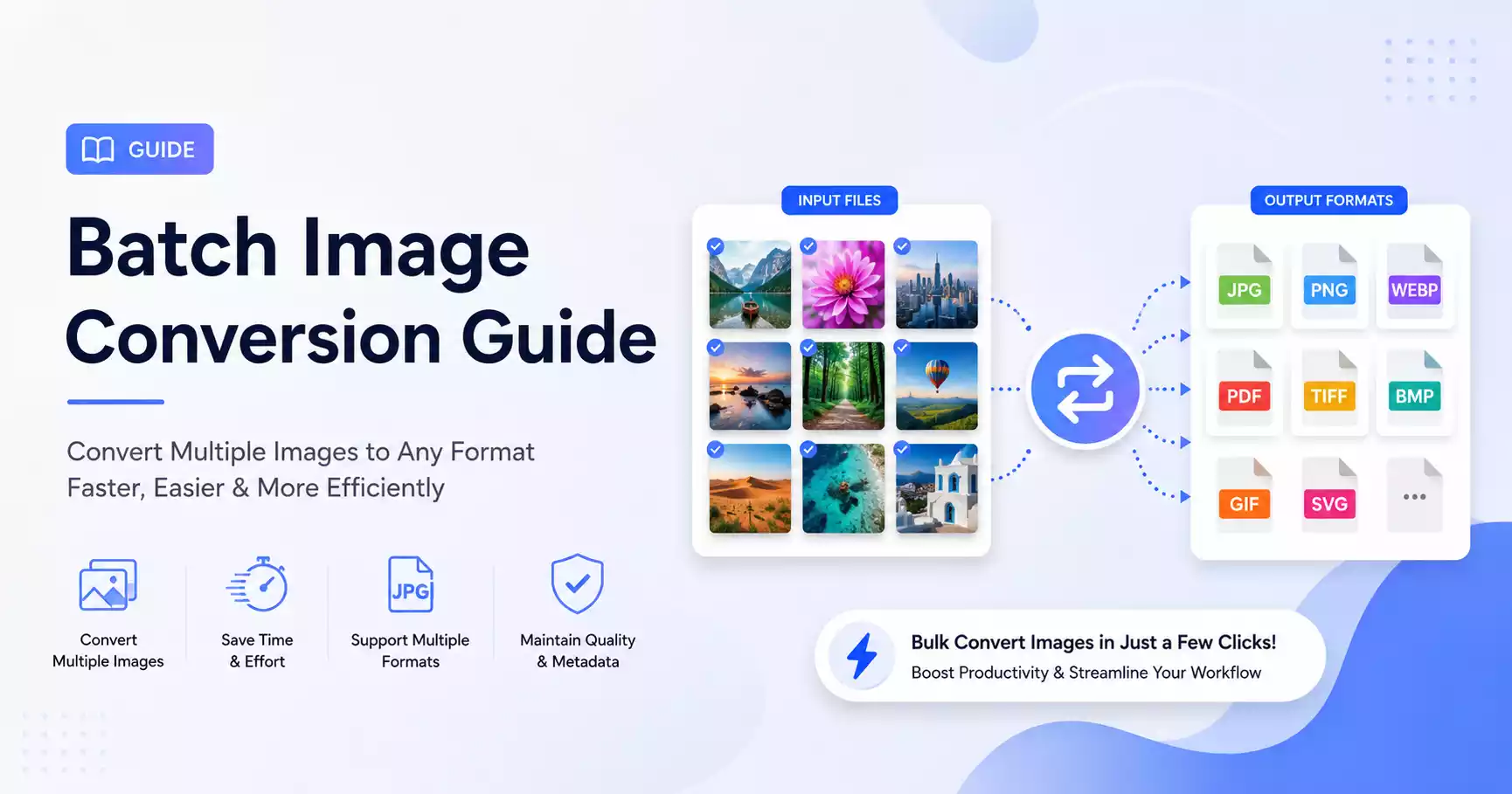
Converting 100 images one by one is a waste of an afternoon — and there's no reason to do it that way. The right approach is batch processing: drop all your files, set the output format, and let the tool handle the rest while you do something else. For most people, a browser-based tool is the fastest starting point.
Quick answer: Drop all your images into a bulk converter, choose your output format (JPG, WebP, PNG), and download a single ZIP with all the converted files. No software to install — it runs entirely in your browser.
When do you actually need batch image conversion?
Common scenarios where converting one by one would eat your whole day:
- HEIC to JPG — Downloaded a month of iPhone photos, all HEIC, need to share with Windows users
- PNG to WebP — Converting a website's image library to improve load times
- Resize all images — Product photos from a photographer all need to be 1200px wide
- Change quality — Reduce all JPGs to 80% quality for storage or a website
- Format conversion — All BMP images from an old scan need to be converted to JPG
Can I do this without downloading any software?
Yes — for most people, a browser-based bulk converter is the right choice:
- Open the bulk image converter in your browser
- Drop all your images at once (or select multiple files)
- Choose your output format and quality settings
- Wait for processing to complete
- Download the ZIP file containing all converted images
Everything runs in your browser. Your images don't get uploaded anywhere. Works with hundreds of files.
Limits: Very large files (100MB+ each) might be slow. For thousands of files, a desktop approach is faster.
What's the best free desktop app for large batches?
IrfanView (Windows, free)
IrfanView is a legendary free image viewer and batch processor for Windows. It's fast and handles massive batches.
- Download and install IrfanView (plus the plugins pack)
- File → Batch Conversion/Rename
- Add all your images to the list
- Set the output format and any resize/quality settings
- Click "Start Batch"
IrfanView can process thousands of images quickly. You can also batch-rename, apply watermarks, and resize all at once.
XnConvert (Free, cross-platform)
XnConvert is available on Windows, Mac, and Linux. It's more powerful than IrfanView for batch operations and supports over 500 formats.
- Install XnConvert
- Drag your images into the Input tab
- Set actions in the Actions tab (resize, convert, adjust quality)
- Choose output format in the Output tab
- Click Convert
XnConvert's strength is combining multiple operations — resize AND convert AND add a watermark, all in one batch.
What's the fastest way for developers?
ImageMagick is free, open-source, and can handle virtually any image operation.
Convert all JPG files in a folder to WebP:
mogrify -format webp *.jpg
Resize all images to 1200px wide (maintaining aspect ratio):
mogrify -resize 1200x *.jpg
Convert all PNG to JPG at 85% quality:
mogrify -quality 85 -format jpg *.png
Process all images in a folder and save to a different folder:
mogrify -format webp -path output/ *.jpg
The mogrify command processes files in-place (modifying the originals). Use convert to output to a new file if you want to keep originals.
A designer I know had 600 product photos that needed to be converted to WebP for a site relaunch. She ran a single ImageMagick command before lunch and it was done before her coffee cooled. Same job would've taken her all afternoon clicking through a manual converter one file at a time.
What about batch converting video to image?
If you need to extract frames from multiple videos, or convert animated GIFs to MP4 in bulk:
for f in *.gif; do ffmpeg -i "$f" "${f%.gif}.mp4"; done
FFmpeg handles batch processing well when combined with shell scripts.
How do I avoid making mistakes with large batches?
Work with copies, not originals
Always run batch operations on copies of your files, at least the first time. If something goes wrong with the settings, you can re-run without losing the originals.
Start with a small test batch
Before processing 500 images, test with 5–10. Check the output quality and file sizes. This saves time and catches setting mistakes.
Organize by type first
If you have a mix of photos and screenshots, separate them before batch processing. Photos compress differently than screenshots. You might want JPG at 80% for photos but PNG for screenshots. If you need to reduce file sizes after conversion, an image compressor can process individual files with a visual quality slider — useful for fine-tuning after the bulk pass.
Check the output folder occasionally
For very long batches, peek at the output mid-way to make sure things are working as expected.
How do I control file names in batch output?
Most batch tools let you control the output filename:
- Keep the original name but change the extension:
photo.jpg→photo.webp - Add a suffix:
photo.jpg→photo_compressed.jpg - Add a prefix:
photo.jpg→web_photo.jpg - Rename sequentially:
001.jpg,002.jpg, etc.
Think about naming before you start — renaming files after batch processing is tedious.
How long does batch processing actually take?
Processing times vary by tool, image size, and your hardware:
| Batch size | Image size | Browser tool | Desktop tool |
|---|---|---|---|
| 20 images | 3MB each | ~1 minute | ~10 seconds |
| 100 images | 3MB each | ~5 minutes | ~45 seconds |
| 500 images | 3MB each | Not recommended | ~3 minutes |
For large batches (200+ images), a desktop app like IrfanView, XnConvert, or ImageMagick is the practical choice. The browser handles smaller batches well.
Frequently asked questions
Can I batch convert different image formats in the same run? Yes — most batch tools accept mixed input (HEIC, JPG, PNG, BMP all at once) and convert everything to your chosen output format. The browser-based bulk converter works the same way.
Is this completely free? Yes — no account, no payment, no watermark needed. You can use it as many times as you want.
Do my files get uploaded to a server? No. Everything runs directly in your browser using WebAssembly. Your files never leave your device.